
How to Convert HTML to a Shareable URL (Free, No Signup)
If you already have HTML code, you can turn it into a shareable link by pasting the code, previewing the page, and generating a live URL. This guide covers the free no-signup workflow, the difference between a standalone HTML file and a complete site folder, and the path problems that can make CSS or images disappear.
Quick answer: convert HTML to a URL in four steps
- Paste the HTML code or upload your browser-ready files.
- Preview the page and check its local dependencies.
- Run the readiness and security check.
- Generate the live HTTPS URL and copy the shareable link.
You can start with the HTML to URL converter without a credit card. Anonymous releases stay online for one day; a free account keeps sites live for seven days and adds a recovery window.
What publishing HTML as a website actually means
A website is just HTML, CSS, JavaScript, and assets served from an address a browser can reach. If your files are already browser-ready—everything opens and runs locally with no build step—then the only thing standing between your code and a live website is hosting and a URL.
That's a smaller problem than it sounds. You don't need a drag-and-drop builder to rebuild what you already have, and you don't need a Git pipeline or a server to run if the output is static. You need somewhere to put the files and a link to share. For one page, use the HTML to URL workflow. If the page depends on local styles, scripts, images, or additional routes, publish the complete folder with static site hosting.
From code to live URL in four steps
Here is the full flow, from pasting HTML to opening the finished site.
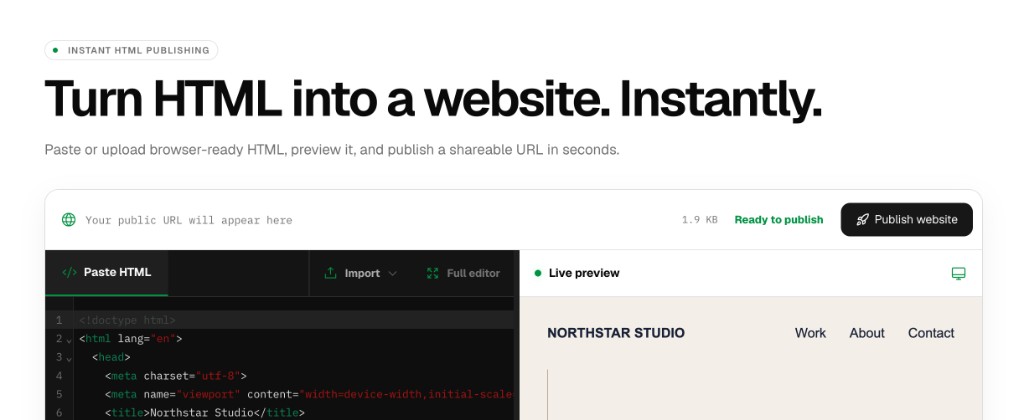
1. Paste your HTML and preview it
Drop your HTML into the editor and see it render live on the right. The console at the top shows the file size and enables Publish website as soon as the page is ready to go online.
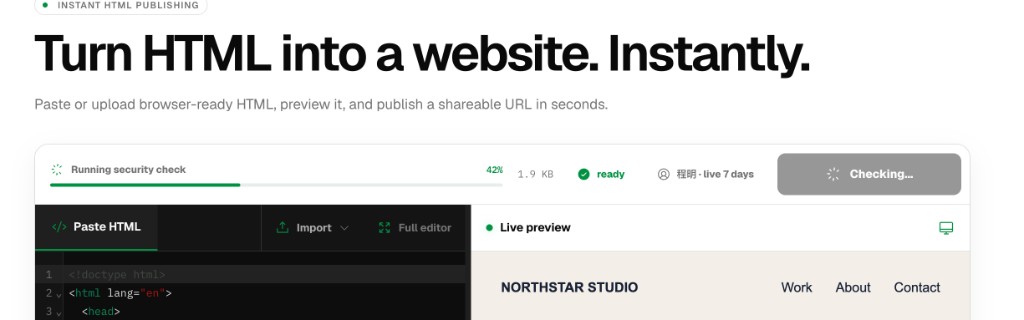
2. Run the pre-publish check
One click starts a security and readiness check. It looks over the release before it gets a public address, instead of pushing raw code straight to a live origin.
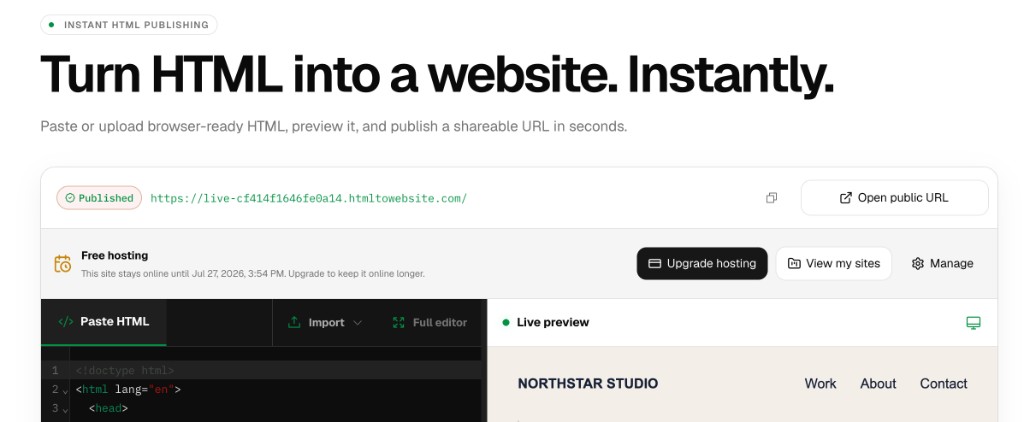
3. Get your public URL
When the check passes, your page is published to its own address on a per-site origin. The same console turns into a Published state with the live URL, a copy button, and the free hosting window.
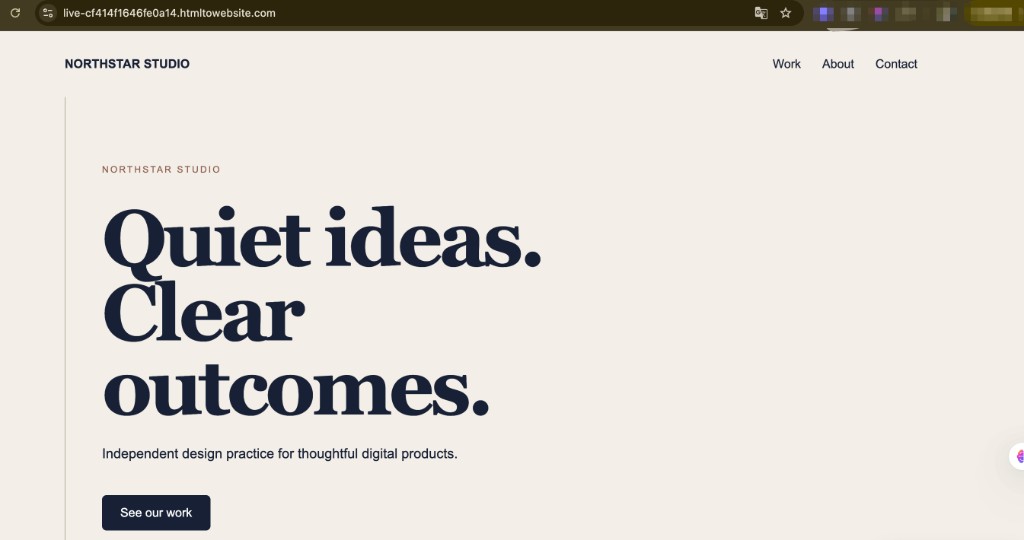
4. Share the live site
Open the URL and your HTML is a real website—responsive, self-contained, and ready to send to a client, teammate, or anyone with the link.
Choose the right publishing format
A single pasted document is the fastest option when its CSS and JavaScript are inline, or when it only references files that already live on the web. Use the paste HTML and get a URL workflow for that job.
If the HTML contains paths such as ./styles.css, ./images/hero.jpg, or links to additional pages, publishing only the HTML file is not enough. Upload the complete browser-ready folder or ZIP with static site hosting so the file tree and relative paths stay together.
Projects created with React, Vue, Svelte, or another framework need to be built first. Upload the finished output folder, such as dist or build, rather than source files and package configuration.
Can you publish HTML as a website for free?
Yes. HtmlToWebsite lets you publish without a credit card. An anonymous site stays online for one day. A free account keeps each site online for seven days, then preserves it for another seven days so it can still be recovered.
The free plan supports up to 5 MB per site and 100 MB of account storage. It is designed for prototypes, assignments, AI-generated pages, reports, demos, and short-lived reviews. See the free HTML hosting limits before using it for something that must remain online permanently.
Plus and Pro are the appropriate options when the website needs a custom domain, more storage, longer retention, or removal of the HtmlToWebsite badge.
Fix common HTML publishing problems
CSS, images, or fonts are missing
Inspect the HTML for relative file references. If those files exist only on your computer, upload the complete folder or ZIP instead of the HTML document by itself.
The page works locally but not at a public URL
Check filename capitalization and paths. Web hosting treats Hero.jpg and hero.jpg as different files. Root-relative paths also need the complete site to be published at the same origin.
The project contains Node.js, PHP, or a database
Static hosting serves browser-ready HTML, CSS, images, fonts, and client-side JavaScript. It does not run backend code, server functions, databases, or package-manager builds.
You only want to inspect the code first
Use the HTML viewer to edit and render the page locally in your browser. Nothing is uploaded until you explicitly choose to publish.
How it compares to other ways to build a website
"Turn HTML into a website" can mean a lot of different things depending on the tool. Here's how the common options stack up on cost, trade-offs, and where each one fits best.
| Approach | Typical cost | Pros | Cons | Best for |
|---|---|---|---|---|
| Traditional hosting / VPS | $5–50+/mo, plus setup time | Full control over the server and stack | You manage DNS, SSL, deploys, and uptime | Long-lived, custom applications |
| Website builders (Wix, Squarespace) | $16–40+/mo | Visual drag-and-drop editing | Lock-in; not built around raw HTML you already have | Non-technical marketers |
| WordPress | Free software, ~$5–30+/mo hosting | Huge plugin and theme ecosystem | Ongoing updates, plugins, and security to maintain | Blogs and CMS-driven sites |
| Git deploy (Vercel, Netlify, GitHub Pages) | Free tier, $0–20+/mo as you scale | Excellent for repo-based projects and CI | Needs Git, a build step, and a deploy workflow | Frontend teams with a pipeline |
| Code pens / paste bins | Free | Fast to share a snippet | Not a real site origin; weak for client-facing pages | Snippets and quick experiments |
| HtmlToWebsite | Free tier (short retention); Plus/Pro for longer hosting | Paste → preview → check → URL; each site gets its own origin | Static hosting only; no SSR, databases, or server-side code | AI-generated HTML, prototypes, demos, agent publishing |
Third-party pricing is approximate and changes over time; treat it as a rough guide, not a quote.
Which one should you choose?
- You already have browser-ready HTML and just want a link. Paste it into HtmlToWebsite and publish with the HTML to URL converter. This is the fastest path for AI-generated pages, prototypes, and demos.
- You maintain a repo with a build step and a team. A Git-based host like Vercel or Netlify fits your workflow.
- You need a CMS, logins, or server-side logic. WordPress or traditional hosting is the right tool.
- You just want to share a snippet. A code pen or paste bin is enough—until you need a real, standalone page.
For temporary publishing limits and account retention, see free HTML hosting. For multiple pages and local assets, see the HTML file hosting guide.
HTML publishing FAQ
Can I publish HTML as a website for free?
Yes. You can paste HTML or upload browser-ready files and publish without a credit card. Anonymous releases stay online for one day; a free account keeps sites live for seven days and adds a seven-day recovery window.
How do I turn HTML code into a website URL?
Paste the HTML into the publisher, preview the rendered page, run the readiness check, and choose Publish website. The finished release receives a public HTTPS URL.
Why are my CSS or images missing after I publish?
The HTML probably references local files that were not included. Upload the complete browser-ready folder or ZIP so relative CSS, JavaScript, image, and font paths are published together.
Can I publish JavaScript with the HTML?
Browser-side JavaScript works, including inline scripts and scripts included in a complete static-site upload. Static hosting does not run Node.js, PHP, databases, server functions, or other backend code.
Try it with your own HTML
Paste your HTML, preview it, run the check, and get a shareable URL. No build step, no account required to start.